qStudio on PeachQ
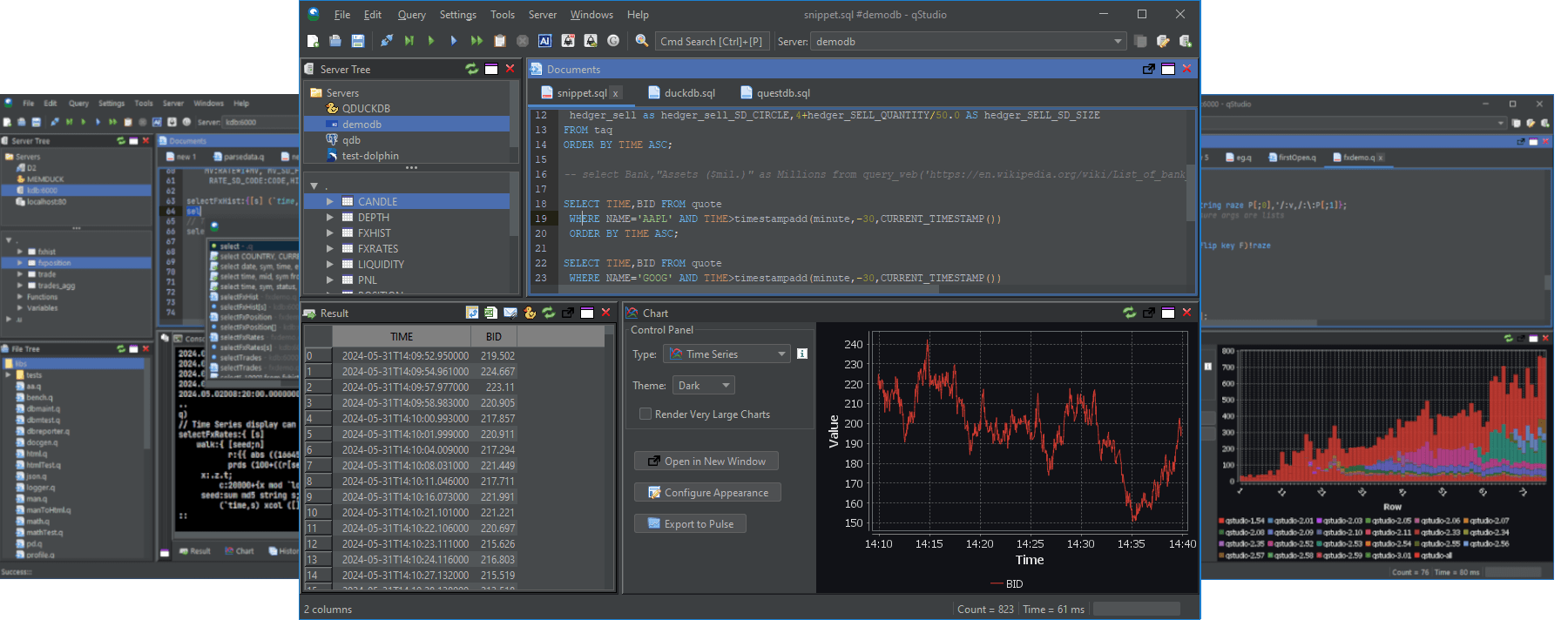
qStudio is a free, Apache-licensed SQL and q editor for Windows, macOS and Linux. It connects to a q process over IPC, highlights q, completes names from the server, shows results as tables and charts them with one click.
Setup
qStudio needs Java 8 or later. Check with java -version.
Start PeachQ listening on a port. On Linux x64 with glibc:
curl -fL https://peachq.org/download/peachq-linux-x64-duckdb.tar.gz -o peachq.tar.gz
tar -xzf peachq.tar.gz
./q -p 5000
Create a small table to query:
Leave that process running. Install qStudio from the qStudio download page, which has a Windows installer, a macOS app and a jar for Linux, and start it.
Connect to PeachQ
- Open Server and choose Add Server.
- Set the type to kdb, the host to
localhostand the port to5000. Leave the username and password empty; PeachQ does not check them by default. - Click Add. The server tree on the left lists
tradeunder Tables.
Run a query
Type a query in the editor and press Ctrl+Q to run the statement under the cursor, or select text and press Ctrl+E. On macOS use Cmd in place of Ctrl.
The result panel shows the keyed table. Grouping without aggregating returns nested columns, which the result viewer shows in full:
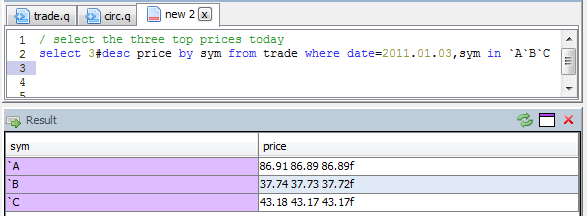
Chart a time series
Run a query that returns a time column first and numeric columns after it:
Open the Chart panel and choose Time Series. qStudio plots price
against time. The chart panel redraws for each new result, so edit the query
and run it again to compare symbols.
Browse the server
The Server Tree lists tables, functions and variables defined in the
process. Expanding trade shows its columns and types, and double-clicking a
table runs a query that previews it.